Step 2: Download RollShare
Download and install RollShare
Download the Windows installer below. If you see a Windows SmartScreen or Defender warning, click More info → Run anyway. Allow the installer to make changes when prompted.
Download RollShare for Windows
Windows Safety Warning Tips
Because RollShare is new and hasn't been widely downloaded yet, Microsoft Defender SmartScreen doesn't recognize it and will show some safety dialogs. These are expected — the warnings are designed to prevent accidental downloads, but they can get in the way when you actually want to install something. Here are tips for getting past them.- Tip 1: The first dialog appears in the browser download bar. Click the 3-dot menu next to the file name and select Keep.
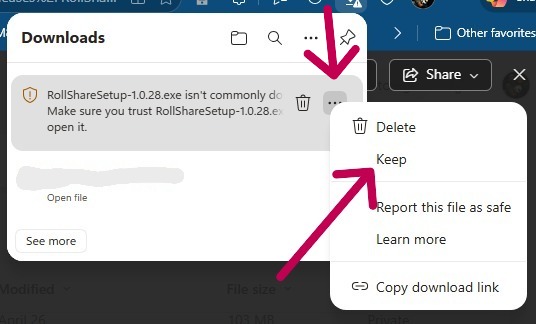
If you see a browser warning, choose Keep to save the installer. -
Tip 2: A second dialog may appear — this one is trickier. Click the down caret (▾) next to the word Delete to reveal the Keep anyway option.
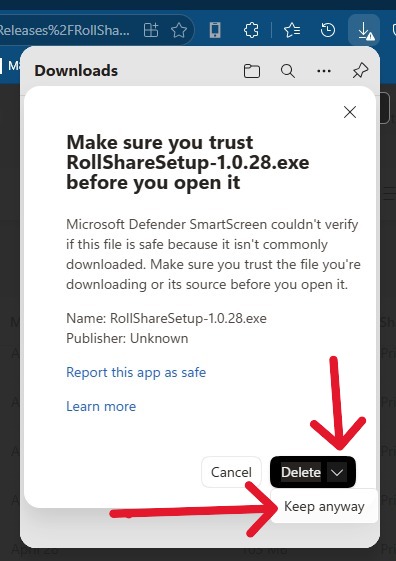
If prompted, click Keep anyway to proceed with the download. -
Tip 3: When you run the installer, Windows may show an Unknown publisher security prompt. Click Yes to allow the installer to proceed.
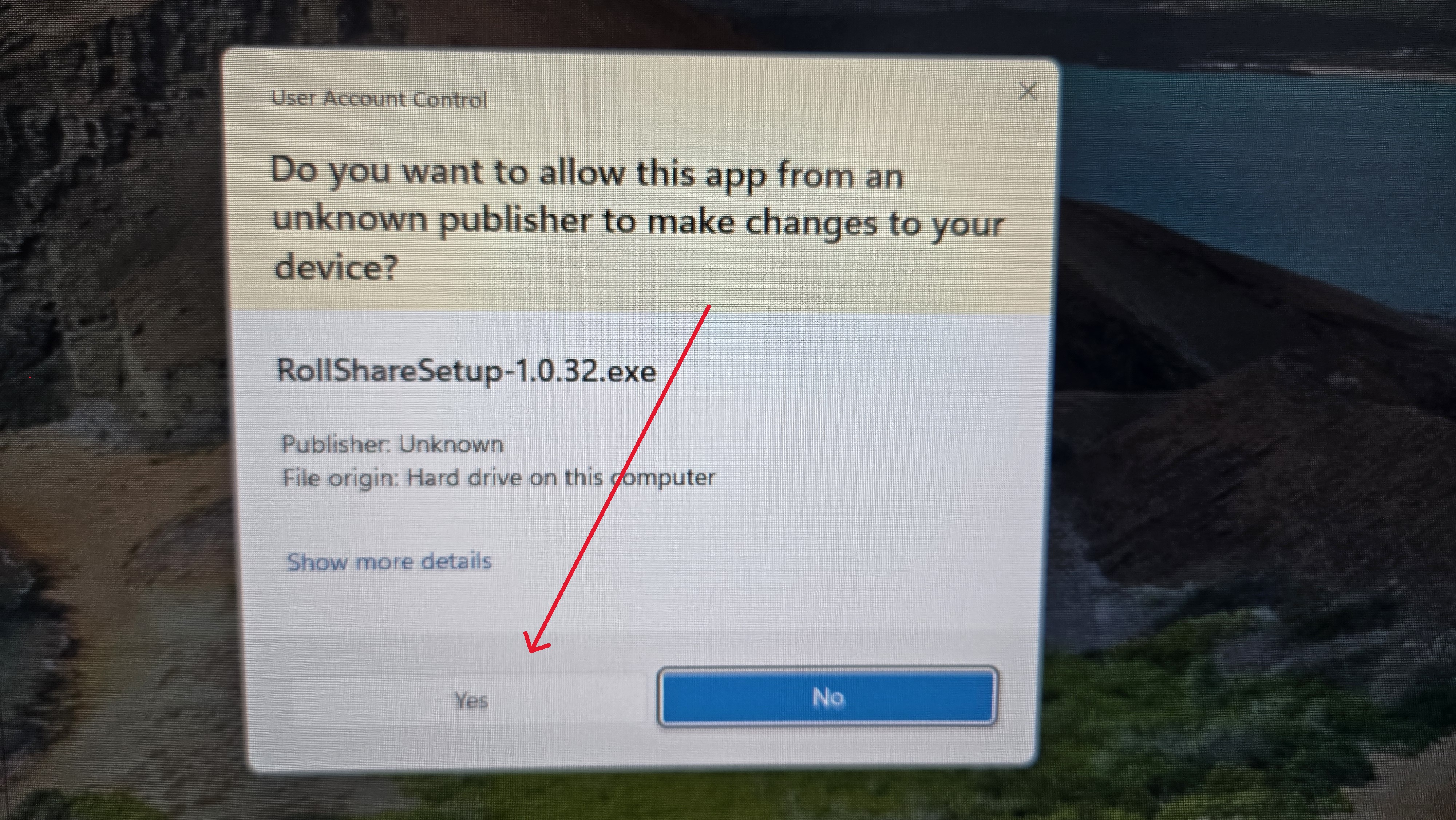
Click Yes to allow the installer to run.
Next steps: After installing, open RollShare, follow the on-screen instructions to pair your phone, and select DiceCamera in your videoconferencing app.